25 September 2026 · 3 min read
How to clean a CRM CSV before importing it
Prepare your companies, contacts, and deals for a CRM move with this practical CSV cleanup checklist.
Why this matters
An import is easier to fix before the records enter your new CRM. You do not need a perfect spreadsheet, but you should know what each column represents and which records need review.
Keep the original file
Save an untouched export before editing anything. Make cleanup changes in a copy so you can compare results or start again if a field maps incorrectly.
Check the fields you rely on
Make sure company names, contact names, email addresses, deal values, stages, owners, and important dates use a consistent format. Decide how you will handle blanks instead of filling them with guesses.
Look for duplicates
The same company may appear with slightly different names. A person may have two rows under different email addresses. Flag uncertain matches for review rather than merging them automatically.
Inspect a small sample first
Choose a batch that includes ordinary records and edge cases. Import it, then check whether the right people, companies, and deals ended up in the right places.
Read the import summary
Do not stop when the progress bar finishes. Check what was created, updated, or skipped, and investigate unexpected results before importing the rest.
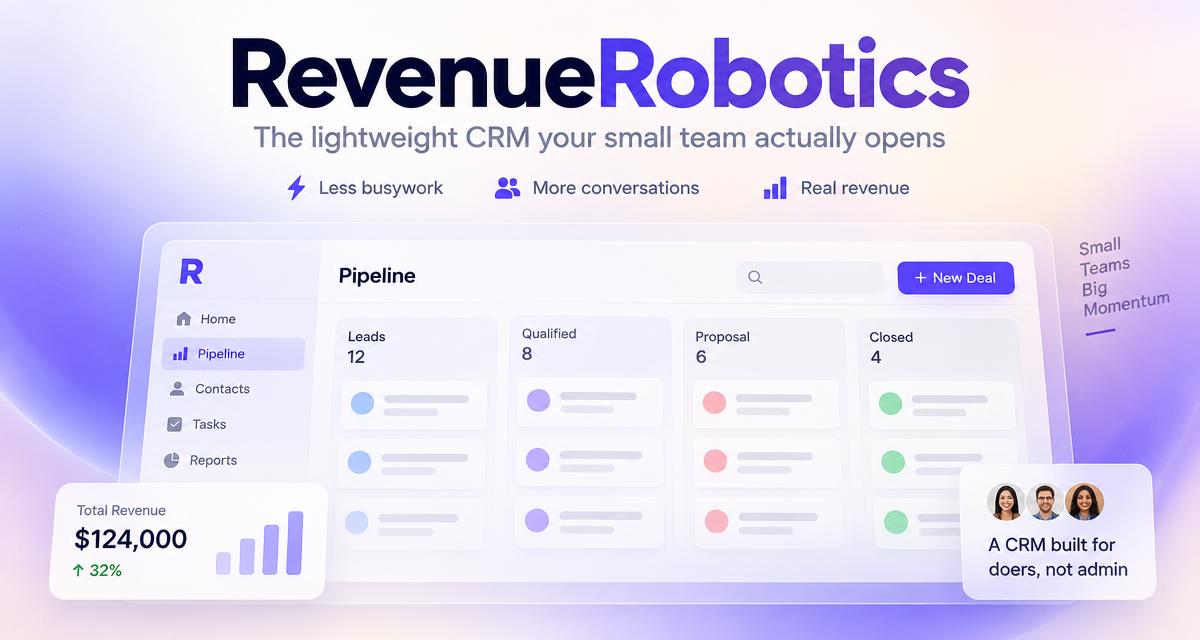
RevenueRobotics supports CSV import with a field-match preview, duplicate checks for people and companies, and a created/updated/skipped summary. If you are exporting from Attio, check exactly which data is present in your CSV: Attio’s documentation says its CSV import does not cover tasks and notes in the same way as its dedicated migration route. attio
CTA: Follow the full spreadsheet-to-CRM migration guide.
Try RevenueRobotics
Companies, deals, automations and AI note summaries in one calm CRM.
Start free trial